AI models · Creator+
Veo 3.1 clips with sound, from a prompt, frames or reference images
Pick Veo 3.1, Fast or Lite in AI Video Generator and get a 4, 6 or 8 second clip at 720p or 1080p, in 16:9 or 9:16. Creator plan and up.
1,000 free tokens to start · No card needed · Cancel paid plans anytime
Unlock Veo 3.1 with Creator — from $9.99/mo, or ₹399/mo in India. 4,000 tokens a month. Billed $119.88 a year, or $12.49 month to month.
What you get
Picture and sound together
Veo 3.1 and Veo 3.1 Fast render a soundtrack with the clip unless you switch it off, and Veo 3.1 Lite always does.
A subject that stays the same
Give Veo 3.1 up to three reference images to keep a character or object consistent through the shot.
Three tiers to match the job
Use Veo 3.1 for the top tier, Veo 3.1 Fast for lower-cost drafts and Veo 3.1 Lite for the lowest cost per second.
Who it's for
Musicians and independent artists
Make cinematic shots with sound for release teasers and music videos.
Content creators and YouTubers
Get 9:16 clips with a soundtrack rendered in, sized for Shorts and Reels.
Filmmakers and storytellers
Draft scenes with dialogue and sound, testing prompts on Veo 3.1 Lite before the top tier.
Music video makers
Pick Veo 3.1 in AI Music Video Generator so each scene of a 16:9 video is shot on it.
When to use it
- You need a short cinematic shot for a release teaser
- You want the sound to come from the same render as the picture
- You have cover art and want it to move
- A character has to look the same through the whole shot
- You're testing prompts and want the lowest cost per second
- Your music video is widescreen and nobody lip-syncs
What you can make with it
Cover art that moves
Turn on Use first / last frame and start the clip on your cover image from the Library.
A teaser with ambient sound
Describe the shot, then the sound in a sentence of its own, like soft vinyl crackle and a distant piano.
A character who stays the same
Give Veo 3.1 as many as three pictures of your character for an 8-second, 16:9 shot that keeps them consistent.
Prompt tests on Lite
Iterate on wording with Veo 3.1 Lite, the lowest-cost tier per second, and switch to Veo 3.1 once the shot reads right.
Silent b-roll
Switch Generate audio off on Veo 3.1 or Veo 3.1 Fast for a silent clip to put your own track under.
A move between two images
Set a first and a last frame to travel from one image to another, such as a sketch to the finished cover.
A line of dialogue
Put the line in a sentence of its own in the prompt, and the clip carries the voice along with the picture.
Widescreen music video scenes
In AI Music Video Generator, choose Veo 3.1 for every scene, or leave it on Auto for a 16:9 video without lip-sync.
Clips made on the timeline
In AI Studio, a video lane's right-click menu has Generate Video, with the same three Veo 3.1 tiers.
Screenshots
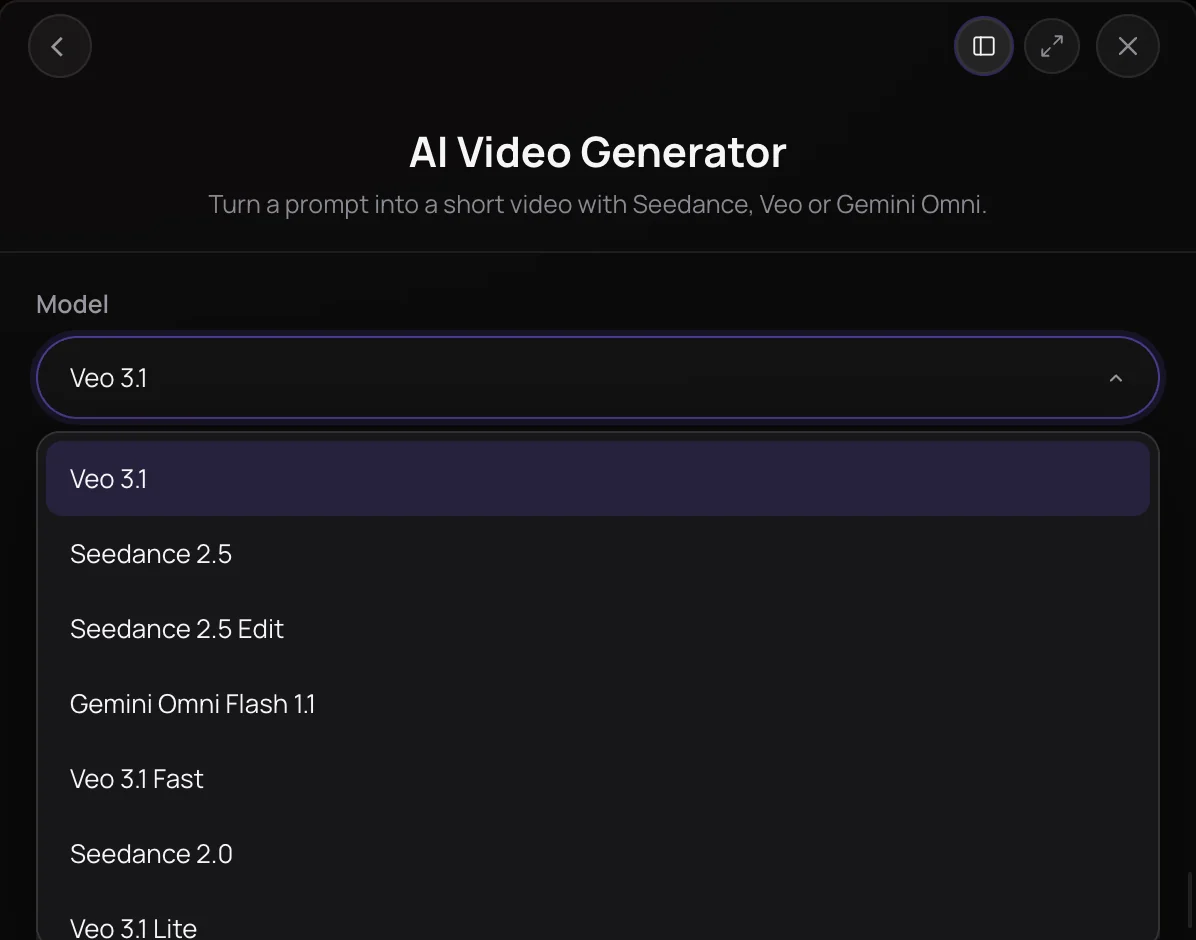
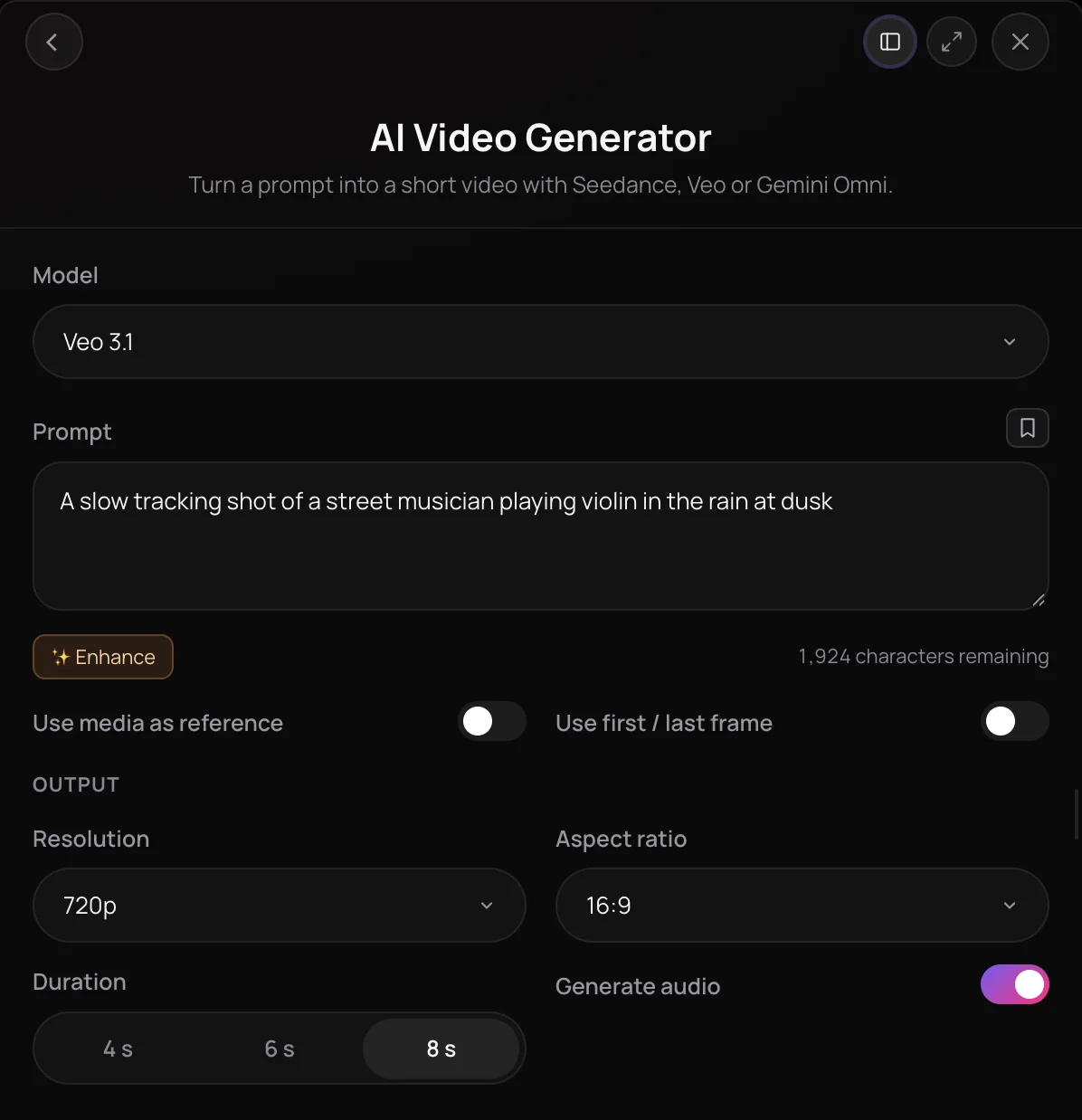
Veo 3.1 is Google's video model with native sound, and in Soundverse it turns a text prompt, a first and last frame, or up to three reference images into a 4, 6 or 8 second clip at 720p or 1080p. Two lighter tiers sit beside it: Veo 3.1 Fast at a lower cost, and Veo 3.1 Lite at the lowest cost, which always includes audio. It's for musicians, creators and marketers who want cinematic shots for releases, teasers and social posts.
See it in action
- New AI Models on Soundverse: Google Lyria 3.5, Veo 3.1, Seedance 2.5 and More One Halloween brief run through each new model on Soundverse, with Veo 3.1 among the video models and every result shown as it came back.
What you can do
Three Veo 3.1 tiers
All three make 4, 6 or 8 second clips at 720p or 1080p (1080p at 8 seconds), in 16:9 or 9:16, on the Creator plan and above.
Veo 3.1 (Creator+)
The top tier and the only one that takes up to three reference images. About 480 tokens per second with sound, or 240 without.
Veo 3.1 Fast (Creator+)
A lower-cost tier with sound optional: about 120 tokens per second with sound at 720p (144 at 1080p), or 96 without (120 at 1080p).
Veo 3.1 Lite (Creator+)
The lowest-cost tier, always with sound: about 60 tokens per second at 720p and 96 at 1080p.
Ways to start a shot
Every Veo 3.1 run needs a prompt; images are optional.
From a prompt
Describe the subject, action, camera and mood, with any sound or dialogue in sentences of their own.
- Slow dolly shot of a singer on a rooftop at dusk, city lights blinking on, wind in her hair
- Close-up of vinyl spinning on a turntable, warm lamp light, soft crackle and a distant piano
First and last frame
Turn on Use first / last frame to start and end on images from your Library, on any of the three tiers.
Reference images
On Veo 3.1, add up to three reference images of a character or object, at 16:9 and 8 seconds.
How it works
Pick a Veo 3.1 tier
Open AI Video Generator under Create in AI Tools and choose Veo 3.1, Veo 3.1 Fast or Veo 3.1 Lite in the Model menu. In AI Studio, right-click a video lane and choose Generate Video for the same options.
Describe the shot
Write the subject, action, camera and mood, and put any sound or dialogue in sentences of their own. Enhance can polish the prompt once you've written it.
Add images if you like
Turn on Use first / last frame to start and end on images from your Library. On Veo 3.1, you can instead add up to three reference images, at 16:9 and 8 seconds.
Set the output and generate
Choose 4, 6 or 8 seconds, 720p or 1080p (1080p needs 8 seconds), 16:9 or 9:16 and, on Veo 3.1 or Fast, whether to generate audio. Click Generate in Chat; the clip lands in your chat and in Videos.
Why use Veo 3.1
Three tiers, one model family
Use Veo 3.1 for the top tier and reference images, Veo 3.1 Fast for lower-cost drafts, and Veo 3.1 Lite when cost matters most.
Sound from the same render
Veo 3.1 and Veo 3.1 Fast generate a soundtrack with the clip unless you turn Generate audio off, which also lowers the cost. Veo 3.1 Lite always generates audio.
A subject that stays the same
Give Veo 3.1 up to three reference images of a character or object to keep that subject consistent through the shot.
Ready for music videos
AI Music Video Generator can film every scene of a video on Veo 3.1. On Auto, it picks Veo 3.1 for 16:9 videos unless the singer lip-syncs.
What it costs
Needs Creator or above.
- 8-second clip with audio: 3,840 tokens at 480 tokens a second (about $9.59–$11.99 on Creator, or ₹383–₹479 in India).
- 8-second clip without audio: 1,920 tokens at 240 tokens a second (about $4.80–$6.00 on Creator, or ₹192–₹240 in India); it holds 3,840 tokens when it starts.
- 8-second clip with audio, Veo 3.1 Fast at 720p: 960 tokens at 120 tokens a second (about $2.40–$3.00 on Creator, or ₹96–₹120 in India); it holds 1,152 tokens when it starts.
- 8-second clip, Veo 3.1 Lite at 720p: 480 tokens at 60 tokens a second (about $1.20–$1.50 on Creator, or ₹48–₹60 in India); it holds 768 tokens when it starts.
A clip holds its model's top rate for its length when it starts, and gives back what it doesn't use when it's done. Your balance has to cover the hold, so the hold decides whether a clip can start.
Agent One runs this tool for you, and the agent's own steps are metered on top of the tool's price: about 7 tokens a step in Lite mode, 54 in Standard mode and 128 in Pro mode, the default on paid plans.
Creator $12.49 a month, or $9.99 a month billed yearly ($119.88 a year) · Pro $31.24 a month, or $24.99 a month billed yearly ($299.88 a year) · Max from $72 a month, or $60 a month billed yearly ($720 a year).
In India (PayU): Creator ₹499 a month, or ₹399 a month billed yearly (₹4,788 a year) · Pro ₹1,299 a month, or ₹1,039 a month billed yearly (₹12,468 a year) · Max from ₹2,999 a month, or ₹2,399 a month billed yearly (₹28,788 a year).
Prices outside India are in US dollars, billed through Stripe; in India they are in rupees, billed through PayU. Monthly tokens reset each month and don't roll over.
Good to know
Fixed clip lengths
Each run makes one clip of 4, 6 or 8 seconds. 1080p needs 8 seconds, and Veo 3.1 doesn't render 4K.
No audio input
Veo 3.1 takes no reference audio or video, so it can't lip-sync a character to your song.
Safety filter
Prompts involving real people, public figures, brand names or song lyrics can be blocked.
Frequently asked questions
Is Veo 3.1 free?
No. Veo 3.1, Veo 3.1 Fast and Veo 3.1 Lite are available on the Creator plan and above, and each run uses tokens per second of video. An 8-second Veo 3.1 clip with sound is about 3,840 tokens, while Veo 3.1 Lite makes one for about 480 at 720p. AI Video Generator shows the estimate before you generate. Runs made in chat also go through Agent One, which adds at least 128 tokens in its default Pro mode, or 7 in Lite mode. Signing up for Soundverse is free.
How good is Veo 3.1?
Judge Veo 3.1 on your own shot. Veo 3.1 is the top tier of the three Veo 3.1 options in Soundverse, and it comes first in AI Video Generator's Model menu. In October 2026, Soundverse posted a video that runs one Halloween brief through each of its new models, Veo 3.1 included, and shows exactly what came back. Try prompts on Veo 3.1 Lite first, then run the one that works on Veo 3.1.
Can I use Veo 3.1 videos commercially?
Veo 3.1 runs on paid Soundverse plans, and paid plans include a commercial license; the Pricing page lists what each plan covers. You need the rights to any image you add as a frame or reference, and you should only show a face you own or have permission to use. Veo 3.1's safety filter can also block a video whose prompt involves real people, public figures, brand names or song lyrics.
What can't Veo 3.1 do?
Veo 3.1 makes only 4, 6 or 8 second clips, renders 1080p only at 8 seconds and doesn't render 4K. It takes reference images only at 16:9 and 8 seconds, and it takes no reference audio or video, so Veo 3.1 can't lip-sync a character to your vocal. For lip-sync, pick Seedance 2.0 or Seedance 2.5 with a portrait and a vocal, or open Lip Sync.
What is Veo 3.1?
Veo 3.1 is Google's video model with native sound, offered in Soundverse's AI Video Generator alongside Veo 3.1 Fast and Veo 3.1 Lite. In Soundverse, Veo 3.1 turns a prompt, a first and last frame, or up to three reference images into a 4, 6 or 8 second clip at 720p or 1080p, in 16:9 or 9:16.
How do I use Veo 3.1 in Soundverse?
Open AI Video Generator, choose Veo 3.1 in the Model menu, describe the shot and click Generate in Chat. You can also right-click a video lane in AI Studio and choose Generate Video, or ask Agent One by name, such as "make an 8 second clip of waves at sunset with Veo 3.1". Veo 3.1 is available on the Creator plan and above.
What's the difference between Veo 3.1, Veo 3.1 Fast and Veo 3.1 Lite?
Veo 3.1 is the top tier and the only one that takes reference images, at about 480 tokens per second with sound. Veo 3.1 Fast costs less, with sound optional. Veo 3.1 Lite costs the least and always generates audio. All three Veo 3.1 tiers make 4, 6 or 8 second clips at 720p or 1080p in 16:9 or 9:16, and all three can start on a first frame and end on a last frame.
How is Veo 3.1 different from Seedance 2.0 and Gemini Omni Flash 1.1?
Seedance 2.0, Soundverse's default video model, makes 4 to 15 second clips in six aspect ratios and takes reference video plus a vocal for lip-sync. Gemini Omni Flash 1.1 makes clips of any whole length from 3 to 10 seconds and always adds sound. Veo 3.1 sticks to 4, 6 or 8 seconds in 16:9 or 9:16, with sound you can switch off, and takes reference images only at 16:9 and 8 seconds.
How long can a Veo 3.1 video be?
Each Veo 3.1 run makes one clip of exactly 4, 6 or 8 seconds. For a single clip of up to 30 seconds, pick Seedance 2.5 instead. For a full video set to a song, choose Veo 3.1 in AI Music Video Generator, which films every scene on Veo 3.1 and cuts the scenes to the music.
Ready to film with Veo 3.1?
Open AI Video Generator, pick Veo 3.1, Veo 3.1 Fast or Veo 3.1 Lite in the Model menu, and describe your first shot.