Edit & enhance · Free
Add effects to audio: reverb, EQ, delay and more, in your order
Pick a track and chain up to eight of 14 studio effects. Get a processed WAV in your chat and Library, and keep your original as it was.
1,000 free tokens to start · No card needed · Cancel paid plans anytime
Do more with Apply Effect on Creator — from $9.99/mo, or ₹399/mo in India. 4,000 tokens a month. Billed $119.88 a year, or $12.49 month to month.
What you get
A processed copy, no DAW needed
Run reverb, delay, compression, filters or EQ over a whole song or stem, and get the result back as a new WAV.
Your original stays untouched
Each run saves a new WAV with the same sample rate, channels and length as the source, and leaves the source file as it was.
Exact settings when you need them
The panel runs each effect at its default. Describe values, such as a high-pass at 100 Hz, to Agent One in a chat and it sets them.
Who it's for
Podcasters
Clean up a voice recording with filters, a gate and compression without opening audio software.
Content creators
Give a voiceover or a song clip reverb, echo or a filtered sound before it goes into a video.
Producers and artists
Print a processed copy of a stem, such as a delayed vocal or distorted drums, to drop back into a project.
Music students and teachers
Hear what each effect does, and how their order changes the result, on your own audio.
When to use it
- A vocal sounds dry and you don't have a DAW open
- A recording has rumble underneath or hiss between phrases
- You want a processed copy of a file and need to keep the original
- You're away from your usual audio software
- You want to compare two effect orders on the same audio
What you can make with it
A podcast voice chain
Run High Pass, Noise Gate and Compressor in that order to cut low rumble, quiet the gaps and even out a spoken track.
A phone-call voice
In a chat, ask Agent One for High Pass near 300 Hz and Low Pass near 3 kHz to make a voice sound like a phone call.
Lo-fi grit on drums
Put Distortion before a Low Pass to roughen a drum loop and take the shine off its top end.
A lesson in effect order
Process the same clip with two chain orders and play the results back to back in class.
A steadier demo
Finish a rough demo with Compressor, then Limiter, for a more even level before you share it.
Wet stems for a remix
Print reverb or chorus onto a stem from Stem Separator, then bring the processed copy into AI Studio.
Motion on a synth or guitar
Add Chorus or Phaser to a synth or guitar part to give a static sound some movement.
A lift for a quiet recording
Raise a quiet file with Gain and put Limiter after it to catch the peaks.
Screenshots
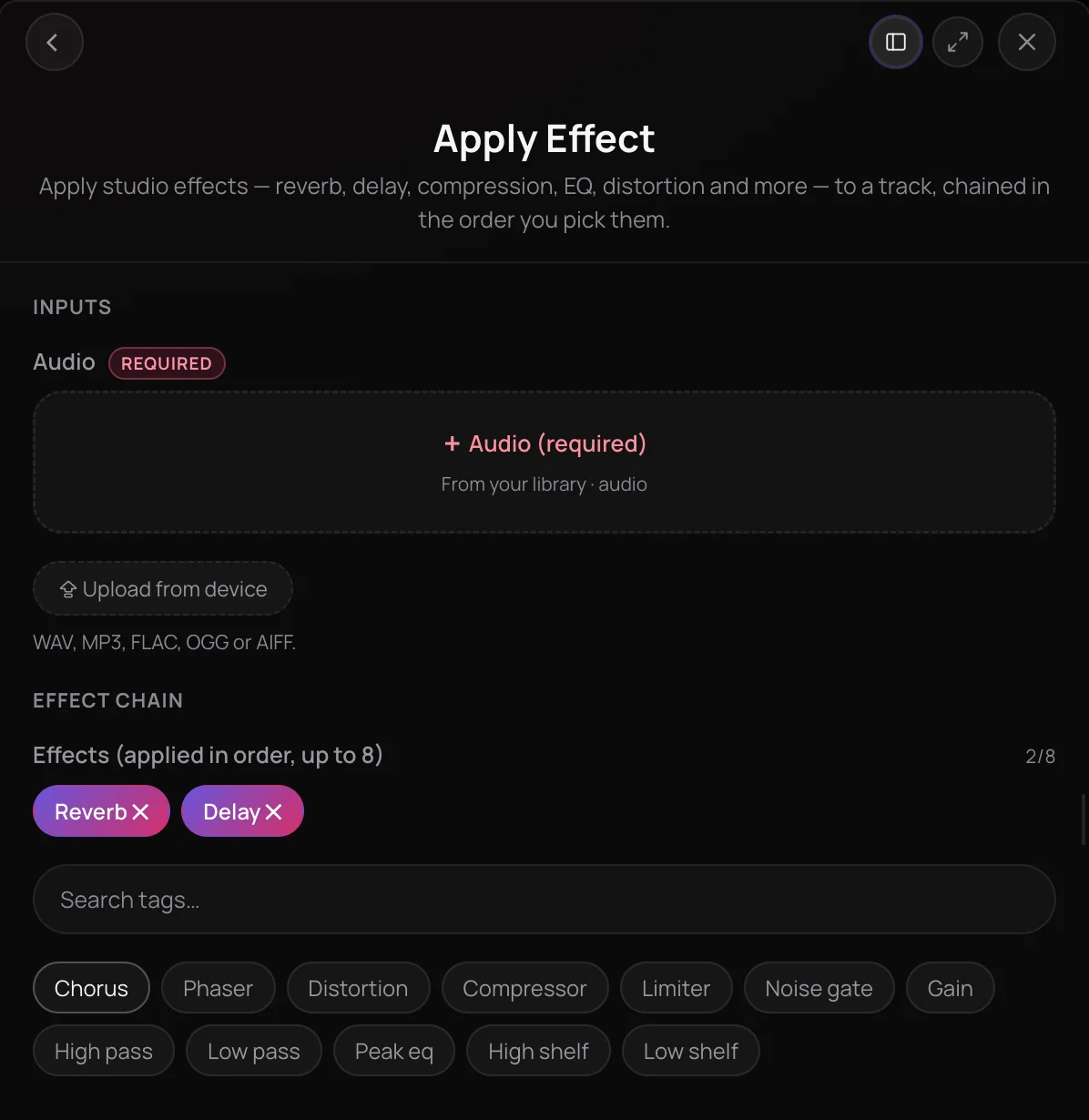
Apply Effect is Soundverse's tool to add effects to audio: it runs a track through a chain of up to eight studio effects, applied in the order you pick them. The 14 effects cover reverb, delay, chorus, phaser, distortion, compression, limiting, a noise gate, gain, high-pass and low-pass filters and three EQ bands. It suits producers, artists and creators who want a processed copy of a song or stem without opening a DAW, saved as a new WAV while the original stays unchanged.
See it in action
- Every AI Tool in Soundverse “Edit”: Inpainting, Stems, Voice Swap, Remix and More | Full Walkthrough From 1:04. The Apply Effect part of Soundverse's Edit walkthrough, from input to result.
How it works
Open Apply Effect
Find Apply Effect in AI Tools under Edit, or choose Edit, then Apply Effect on a song in your Library to open it with that song already added.
Add your audio
Under Audio, pick a track from your Library or upload a WAV, MP3, FLAC, OGG or AIFF file from your device.
Build the effect chain
Under Effects, pick up to eight in the order you want them applied, or use the search box to find one. Reverb is in the chain to start, and you can remove it.
Generate in Chat
Click Generate in Chat. Agent One runs the chain on the whole file, and the processed audio arrives in your chat as a new WAV, also saved to your Library.
Why use Apply Effect
The order is yours
Effects run first to last in the order you pick them, so distortion before reverb sounds different from reverb before distortion.
14 studio effects
Reverb, delay, chorus, phaser, distortion, compressor, limiter, noise gate, gain, high pass, low pass, peak EQ, high shelf and low shelf, all in one panel.
Your original stays as it was
Each run saves a new WAV named after its effects, with the same sample rate, channels and length as the source, and leaves the source file untouched.
Exact settings on request
The panel runs each effect at its default setting. For something specific, such as a bigger reverb room or a high-pass at 100 Hz, describe it to Agent One in a chat.
What it costs
Works on the Free plan. New accounts get 1,000 free tokens. On the Free plan it runs through Agent One, which gives free accounts 3 runs in all; sharing unlocks the 2nd and 3rd.
- Apply one effect to a track: 50 tokens (about $0.12–$0.16 on Creator, or ₹5–₹6 in India).
Agent One runs this tool for you, and the agent's own steps are metered on top of the tool's price: about 7 tokens a step in Lite mode, 54 in Standard mode and 128 in Pro mode, the default on paid plans.
Creator $12.49 a month, or $9.99 a month billed yearly ($119.88 a year) · Pro $31.24 a month, or $24.99 a month billed yearly ($299.88 a year) · Max from $72 a month, or $60 a month billed yearly ($720 a year).
In India (PayU): Creator ₹499 a month, or ₹399 a month billed yearly (₹4,788 a year) · Pro ₹1,299 a month, or ₹1,039 a month billed yearly (₹12,468 a year) · Max from ₹2,999 a month, or ₹2,399 a month billed yearly (₹28,788 a year).
Prices outside India are in US dollars, billed through Stripe; in India they are in rupees, billed through PayU. Monthly tokens reset each month and don't roll over.
Frequently asked questions
Is Apply Effect free?
Apply Effect is available on every Soundverse plan, including Free, and each run uses tokens from your plan. The panel shows the effect chain's cost before you start, the same for one effect or eight, and the Agent One turn that runs the chain uses tokens too. Soundverse is free to sign up, and new accounts get free starter tokens to try Apply Effect.
How many Apply Effect runs can I make on the Free plan?
Up to three. On the Free plan, Apply Effect runs through Agent One, which gives Free accounts three generations in total, shared with other tools: the first right away, and each of the next two when you share Soundverse. Each run costs 50 tokens, the same for one effect or eight, plus a small charge for Agent One, from the 1,000 tokens new accounts get at sign-up. Paid plans don't have the three-generation cap.
How good do effects from Apply Effect sound?
Apply Effect uses standard studio processing, the same kinds of reverb, delay, compression, filters and EQ found in a DAW. From the panel, each effect runs at its default setting on the whole file. The result depends on your source and on the order of the chain, so start with one or two effects and listen before adding more. For a bigger reverb or an exact EQ value, ask Agent One in a chat to set it.
Can I use audio processed with Apply Effect commercially?
On the Free plan, what you make with Apply Effect is for personal use. Paid plans add a commercial license; the Pricing page lists what each plan covers. Apply Effect only processes audio you bring to it, so you need the rights to anything you upload, including any samples or vocals in the recording.
What can't Apply Effect do?
Apply Effect processes the whole file: it can't target one section or one instrument in a mix, and it doesn't change tempo, pitch or length. To treat only the vocal, split the song with Stem Separator first, then run Apply Effect on the vocal stem. For effects you adjust by ear while you mix, AI Studio has its own in-browser effects on each track.
What is Apply Effect, and how does it add effects to audio?
Apply Effect is Soundverse's tool to add effects to audio: it runs a track through a chain of up to eight studio effects, applied in the order you pick. Apply Effect offers 14 effects, from reverb and delay to compression, filters and EQ, and saves the result as a new WAV in your Soundverse Library while the original stays unchanged.
How do I add reverb to a song online?
Open Apply Effect in Soundverse, pick the song from your Library or upload it, and keep Reverb under Effects, adding Delay or Compressor after it if you want a chain. Click Generate in Chat, and Agent One returns the processed song as a new WAV in your chat and Library. Apply Effect's Reverb uses a medium-sized room by default; ask Agent One in a chat for a bigger or smaller one.
Which effects can Apply Effect add?
Apply Effect has 14 effects: reverb, delay, chorus, phaser, distortion, compressor, limiter, noise gate, gain, high pass, low pass, peak EQ, high shelf and low shelf. Pick up to eight per run, each one once, and Apply Effect applies them first to last in the order you picked them, so the same effects in a different order can sound different.
Can I change the settings of each effect?
Not in the Apply Effect panel, which runs every effect at its default. High Pass cuts below 80 Hz, Low Pass cuts above 8 kHz, Compressor works at 4:1 from -20 dB, Delay repeats every quarter second and Gain adds 8 dB, while Peak EQ, High Shelf and Low Shelf start flat, with no boost or cut. For exact values, describe them to Agent One in a chat, and it can set them when it runs the effects.
What audio files does Apply Effect accept?
Apply Effect takes one WAV, MP3, FLAC, OGG or AIFF file, picked from your Soundverse Library or uploaded from your device. The result is always a new WAV with the same sample rate and channels as the source. For an M4A or AAC file, convert it to WAV with Media Converter first. You need the rights to anything you upload.
Ready to shape your track?
Pick a track, build a chain of up to eight studio effects, and get a processed WAV in your chat.