Studio & stage · Free to try
Make a song together on one live timeline, from anywhere
Invite anyone by email or link. Everyone sees edits as they happen, with comments, chat, file sharing and calls inside the project.
1,000 free tokens to start · No card needed · Cancel paid plans anytime
Do more with Collaborative AI Studio on Creator — from $9.99/mo, or ₹399/mo in India. 8 AI Studio projects with 8 tracks each; WAV, stems and 1080p export. Billed $119.88 a year, or $12.49 month to month.
What you get
No more emailed stems
Everyone works in one project, so the latest version is always the one in front of you.
Feedback right where it belongs
Pin comments to a track at the exact bar, @mention people, then resolve the thread when it's done.
Talk, share and call in the session
Session Chat carries messages and files you can drag onto the timeline, and calls take up to three people who are online.
Who it's for
Co-writers in different cities
Write on one timeline from wherever you are, with every edit showing up for both of you as it happens.
Producer and vocalist pairs
Share the beat, collect vocal takes in the same project and talk them through on a call.
Bands
Pull everyone's ideas and recordings into one project instead of a group chat full of voice notes.
Managers and A&R
Leave feedback pinned to the exact bar and see each note resolved.
Music teachers and students
Teach inside a real project, with notes on the timeline and a video call alongside.
When to use it
- Your co-writer lives in another city or time zone
- A vocalist needs to record over your beat without a studio session
- Feedback on a mix is scattered across messages
- Your band's ideas live in separate voice notes
- You want Agent One to add parts while everyone watches
What you can make with it
A co-write across time zones
Each writer adds parts and takes when they're free, and comments pinned to a bar carry the notes between sessions.
A remote vocal session
The producer sets up the beat, the vocalist records takes onto their own track, and you talk on a video call in the project.
Mix notes that stay put
Invite a manager or A&R to comment at the exact bar, then resolve each thread as you make the fix.
Band ideas in one place
Share voice memos and phone recordings in Session Chat, then drag each one onto the timeline.
A lesson in a real song
Teacher and student open the same project on a video call, with the teacher's notes pinned where they apply.
Agent One as a third writer
Ask Agent One for a bassline or a pad, and everyone in the session sees it land on its own track.
Split the work by role
One person arranges while another mixes, and named cursors show who is working where.
Screenshots
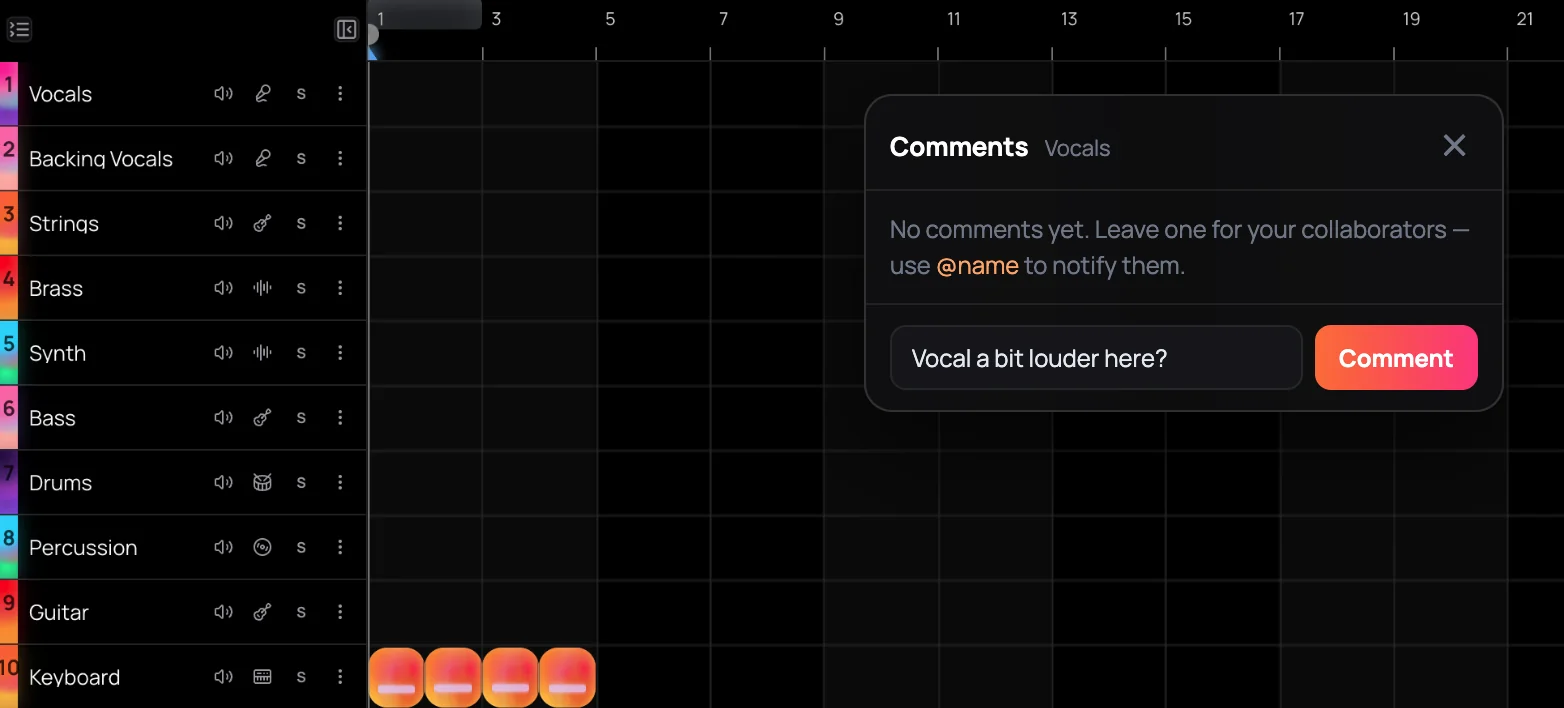
Collaborative AI Studio is Soundverse's space for online music collaboration: everyone you invite works in the same AI Studio project, on the same timeline, at the same time. It's built for co-writers, bands, producer-and-vocalist pairs and remote sessions that used to run on emailed stems and voice notes. You get live cursors, a role for each person, comments pinned to tracks, a session chat for messages and files, audio and video calls, and AI tools that put results on the shared timeline.
See it in action
- Introducing Soundverse AI Studio: Instruments, Effects and Real-Time Collaboration in Your Browser A two-minute tour of AI Studio, including real-time collaboration: bandmates, co-writers and producers working on one timeline together.
- Figma for Music Creation: Real-Time Collaboration in Soundverse AI Studio (Collaborative AI DAW) Invite people into an AI Studio session and build a track together, with every edit and generated stem showing up on everyone's screen.
How it works
Open a project, click Invite
Open your project in AI Studio and click Invite in the top bar, or choose Invite collaborators from the Studio menu. The project owner and Admins can send invites and change link access.
Invite by email or link
Type an email, pick Editor, Viewer or Admin, and click Invite. People who already use Soundverse are usually added straight away; anyone else gets an emailed invite that lasts 7 days and signs up free to accept it. Or set General Access to Anyone with link, choose Can view or Can edit, and send the link.
Edit the same timeline, live
Each person's named cursor and edits appear as they happen, and the top bar shows who's Active or Idle. Right-click an empty part of a track and choose Comment to leave a note at that bar.
Chat, share files and call
Once someone has joined, click Chat to message the session, @mention people and share files from your Library or device, then drag a shared file onto the timeline to use it. Start an audio or video call with up to three people who are online.
Why use Collaborative AI Studio
One project, no file passing
Everyone edits the same timeline, so there are no stems to email and no question about which version is final. The top bar shows Synced while you're connected.
See who's working where
Avatars in the top bar show who's Active or Idle, and each collaborator's named cursor moves across the timeline as they work.
Notes pinned to the music
Comments sit on a track at a bar and show as pins on the timeline. Reply, resolve or reopen a thread, and @mention collaborators by name.
Agent One as a session member
With its Studio switch on, Agent One edits the project live under its own AI-marked avatar, and everyone in the session sees its changes.
What it costs
Free plan: 3 projects with 3 tracks each and 1 video lane, with MP3 and 720p export. Inviting people and editing together use no tokens; AI on the timeline costs what each tool costs.
Included on every plan, with no tokens: all 8 instruments; all 28 rack effects; Mix One, for automatic mixing (Auto-Place and Fix tone); Mastering One, for automatic mastering (the ✦ Master button); and Analysis One, for loudness, peak and spectrum meters.
- Invite people and edit together: no tokens.
Free: 3 AI Studio projects with 3 tracks each and 1 video lane; MP3 and 720p export.
Creator: 8 AI Studio projects with 8 tracks each; WAV, stems and 1080p export.
Pro: 20 AI Studio projects with 20 tracks each; export up to 4K.
Max: 30 AI Studio projects with 30 tracks each on Max ×1, rising by 30 a level to 150 on Max ×5.
A shared project's track limit follows its owner's plan.
AI tools in a shared project use tokens from whoever runs them, at their own plan.
AI on the timeline, at each tool's price
- AI Song Generator — Song with Soundverse v6: 300 tokens (about $0.75–$0.94 on Creator, or ₹30–₹37 in India).
- AI Music Generator — Instrumental with Soundverse v6: 300 tokens (about $0.75–$0.94 on Creator, or ₹30–₹37 in India).
- AI Sound Effects Generator — 5-second sound effect: 144 tokens at 28.8 tokens a second (about $0.36–$0.45 on Creator, or ₹14–₹18 in India).
- Extend Music — Extend an instrumental: 200 tokens (about $0.50–$0.62 on Creator, or ₹20–₹25 in India).
- Audio to MIDI — 3-minute track: 440 tokens at 2.44 tokens a second (about $1.10–$1.37 on Creator, or ₹44–₹55 in India).
- Video to SFX — 10-second video, 1 take: 350 tokens at 35 tokens a second per take (about $0.87–$1.09 on Creator, or ₹35–₹44 in India).
Six of the 21 AI tools on the timeline. Each costs what it costs on its own page, and runs a month count its price alone.
Creator $12.49 a month, or $9.99 a month billed yearly ($119.88 a year) · Pro $31.24 a month, or $24.99 a month billed yearly ($299.88 a year) · Max from $72 a month, or $60 a month billed yearly ($720 a year).
In India (PayU): Creator ₹499 a month, or ₹399 a month billed yearly (₹4,788 a year) · Pro ₹1,299 a month, or ₹1,039 a month billed yearly (₹12,468 a year) · Max from ₹2,999 a month, or ₹2,399 a month billed yearly (₹28,788 a year).
Prices outside India are in US dollars, billed through Stripe; in India they are in rupees, billed through PayU. Monthly tokens reset each month and don't roll over.
Frequently asked questions
Is Collaborative AI Studio free?
Yes. Collaborative AI Studio, Soundverse's space for online music collaboration, is part of AI Studio on every plan, including Free, and inviting people and editing together don't use tokens. Everyone needs a Soundverse account, which is free to create. On Free, the owner's projects hold up to 3 tracks each; paid plans raise that. AI tools in a shared project use tokens from the plan of whoever runs them.
Do edits stay in sync for everyone in Collaborative AI Studio?
Yes. In Collaborative AI Studio, everyone edits one shared copy of the project, so tracks, clips and notes update for each person as they change, and named cursors show where each person is working. The top bar shows Synced while you're connected and Local only when you're not. Undo and redo apply only to your own edits, never to a collaborator's.
Can we release a song we made together?
It depends on your Soundverse plan. On the Free plan, what you make in AI Studio is for personal use. Paid plans include a commercial license; the Pricing page lists what each plan covers. Agree on credits and splits with your collaborators before you release, and make sure you have the rights to everything anyone uploads or records into the project.
What are the limits of collaborating in AI Studio?
Everyone in a Soundverse AI Studio project needs their own Soundverse account, and an emailed invite expires after 7 days. Calls take up to three other collaborators who are online and don't include screen sharing. Roles are set when you invite someone, so to change a role, remove the person and invite them again. The project's track limit comes from the owner's plan, whoever adds the tracks.
What is Collaborative AI Studio, Soundverse's tool for online music collaboration?
Collaborative AI Studio is Soundverse's way to do online music collaboration: the people you invite work in the same AI Studio project, on the same timeline, at the same time. On Soundverse, collaborators see each other's cursors and edits live, comment on tracks, chat, share files and call from inside the project, and every AI result lands on the shared timeline.
How do I collaborate on music online with someone?
Open your song in Soundverse AI Studio and click Invite. Type their email and pick a role: people who already use Soundverse are usually added straight away, and anyone else gets an emailed invite that lasts 7 days and signs up free to accept it. Or set General Access to Anyone with link and send the link. From then on, you both work on the same timeline and see each other's changes as they happen.
Do my collaborators need a paid plan?
No. Anyone you bring into a Soundverse AI Studio project needs a Soundverse account, which is free to sign up for. A shared project's track limit follows the owner's plan, so when it's full, the owner is the one who upgrades. Each person's AI tools and export options follow their own plan: on the Free plan, exports are MP3 audio and 720p video.
How do I control who can join my project?
In Soundverse AI Studio, the Share dialog controls who gets in. Only the owner and Admins can invite people by email or change General Access, which is either Restricted, for invited people only, or open to anyone with the link. You can resend or revoke pending invites and remove collaborators. The Viewer role and Can view links don't make the timeline read-only, so only add people you'd trust to edit it.
Can we comment, chat and call inside the project?
Yes. In Soundverse AI Studio, right-click an empty part of a track and choose Comment to pin a note at that bar, which anyone in the project can reply to, resolve or reopen. Once someone has joined, Chat opens Session Chat for messages, @mentions and files from your Library or device, which you can drag onto the timeline. From there, start an audio or video call with up to three collaborators who are online.
Can Agent One work with us in the session?
Yes. Open Agent One from the AI Studio top bar and leave its Studio switch on, and it edits the project live as a collaborator with its own AI-marked avatar. Agent One can add tracks and MIDI parts, write notes, set instruments and effects, and arrange clips, and everyone in the session sees each change on the shared timeline.
Ready to make music together?
Open AI Studio, click Invite, and bring your co-writers, bandmates or vocalist into the same project.