Edit & enhance · Free
Online media converter: your file in the format you need
Turn a WAV into an MP3, pull the audio out of a video or resize cover art. Pick a preset, trim or crop, and keep the original as it was.
1,000 free tokens to start · No card needed · Cancel paid plans anytime
Do more with Media Converter on Creator — from $9.99/mo, or ₹399/mo in India. 4,000 tokens a month. Billed $119.88 a year, or $12.49 month to month.
What you get
The right format for each job
Presets such as For Podcast, Music Production and Mobile Friendly set the format and quality for you, or pick your own settings.
Your original stays safe
Every conversion is saved as a new Library file with 'Converted' in its name, so the source is never overwritten.
Trim and crop in the same step
Cut audio on its waveform or video on a timeline, and crop to 16:9, 9:16, 1:1 or 4:3 while you convert.
Who it's for
Podcasters
Turn a WAV episode into a mono MP3 for sharing, or pull the audio out of a recorded video call.
YouTubers and content creators
Crop a video to 9:16 for Shorts and Reels, or save just the soundtrack from a clip.
Producers
Make WAV copies for a session and MP3 copies for sharing from the same file.
Independent artists
Prepare cover art and audio in the formats each platform or collaborator asks for.
When to use it
- A collaborator or platform needs a different format than the one you have
- You need only the audio from a video
- A horizontal video needs a vertical version
- A file is too large to send as it is
- You only need part of a recording
What you can make with it
A vertical cut for Shorts and Reels
Crop a 16:9 video to 9:16 and convert it to MP4 for vertical feeds.
A sample from a long file
Trim a few seconds out of a recording on its waveform and save them as their own WAV.
Cover art for posts
Use the Social Share preset to turn a PNG cover into a 1080-pixel JPG.
A lighter image for your site
Convert artwork to WebP with the Web Optimized preset for a smaller file on your website or link page.
Audio ready for transcription
Pull the soundtrack out of an interview video, then run Audio Transcription on it.
One part, checked for copyright
Trim the sample or intro you want to check into its own file, then run Copyright Checker on it.
An archive copy of a master
Save a FLAC copy of a finished master with the Lossless Archive preset.
A voice memo ready for effects
Convert an M4A or AAC voice memo to WAV so you can run it through Apply Effect.
Screenshots
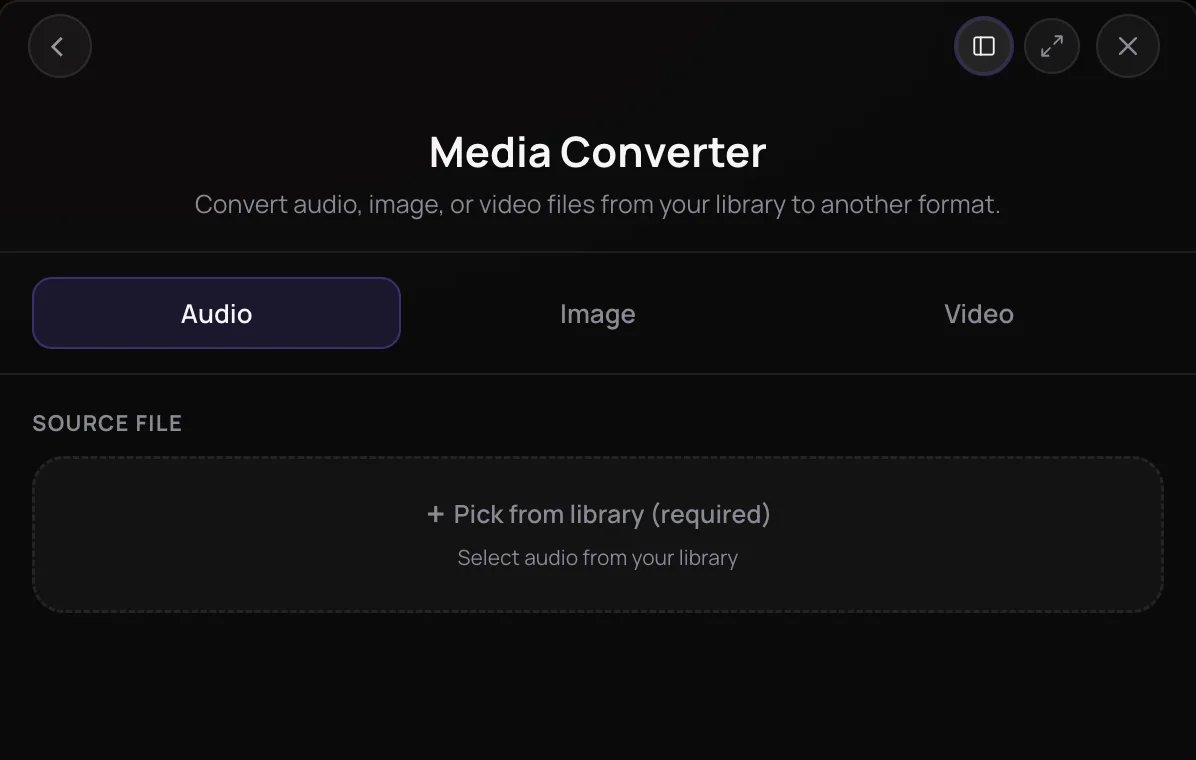
Media Converter is Soundverse's online media converter for audio, image and video files in your Library. Producers, editors and creators use it to make MP3s for sharing, WAV or FLAC copies for editing, lighter images for the web, and MP4 or WebM versions of video. Each conversion is saved as a new file in your Library, and the original stays unchanged.
See it in action
- Every AI Tool in Soundverse “Edit”: Inpainting, Stems, Voice Swap, Remix and More | Full Walkthrough From 3:56. The Media Converter part of Soundverse's Edit walkthrough, from input to result.
How it works
Pick a media type
Open Media Converter in the Edit section of AI Tools and choose the Audio, Image or Video tab.
Choose your source file
Pick the file from your Library, or upload one from your device in the picker first. You can also drag a file in from your Library.
Set the format and options
Choose a preset such as For Podcast or Lossless Archive, or pick a format and adjust settings, trim or crop. The panel estimates the output size.
Convert and find the copy
Click the Convert button, for example Convert to MP3. The new file appears in the chat and your Library, and the original stays as it was.
Why use Media Converter
Three media types, one panel
Audio, image and video each get their own tab, with formats grouped by job: lossy or lossless audio, web images, and video formats or an extracted soundtrack.
Presets for common jobs
Start from presets like For Streaming (MP3, 320 kbps), For Podcast (MP3, 128 kbps mono), Music Production (WAV, 48 kHz) or Mobile Friendly (MP4, 720p).
Trim and crop as you convert
Trim audio on its waveform and video on a timeline, and crop images or video freely or to 16:9, 9:16, 1:1 or 4:3 in the same step.
Your original stays safe
Every conversion becomes a new Library file named after the source with 'Converted' added, so the original is never overwritten.
What it costs
Works on the Free plan. New accounts get 1,000 free tokens. On the Free plan it runs through Agent One, which gives free accounts 3 runs in all; sharing unlocks the 2nd and 3rd.
- Convert one file: 100 tokens (about $0.25–$0.31 on Creator, or ₹10–₹12 in India).
Agent One runs this tool for you, and the agent's own steps are metered on top of the tool's price: about 7 tokens a step in Lite mode, 54 in Standard mode and 128 in Pro mode, the default on paid plans.
Creator $12.49 a month, or $9.99 a month billed yearly ($119.88 a year) · Pro $31.24 a month, or $24.99 a month billed yearly ($299.88 a year) · Max from $72 a month, or $60 a month billed yearly ($720 a year).
In India (PayU): Creator ₹499 a month, or ₹399 a month billed yearly (₹4,788 a year) · Pro ₹1,299 a month, or ₹1,039 a month billed yearly (₹12,468 a year) · Max from ₹2,999 a month, or ₹2,399 a month billed yearly (₹28,788 a year).
Prices outside India are in US dollars, billed through Stripe; in India they are in rupees, billed through PayU. Monthly tokens reset each month and don't roll over.
Frequently asked questions
Is Media Converter free?
Media Converter is available on every Soundverse plan, including Free. Each conversion uses tokens from your plan, and the panel shows the estimated cost before you convert. Soundverse is free to sign up, and new accounts get free starter tokens.
Will converting to MP3 lose quality?
MP3, AAC, OGG and M4A are lossy formats: they make smaller files by discarding some audio detail. WAV and FLAC are lossless. Converting an MP3 to WAV or FLAC with Media Converter won't restore detail that was already removed, so convert from the best-quality source you have when quality matters.
Can I use files converted with Media Converter commercially?
That depends on the file, because Media Converter doesn't change its rights. Media Converter saves a copy in a new format, so a track you made on Soundverse keeps the terms of your plan: on the Free plan it's for personal use, and paid plans add a commercial license; the Pricing page lists what each plan covers. For anything you upload, you need the rights to it, before and after you convert it.
What are Media Converter's limits?
Media Converter converts one file at a time, and the file has to be in your Library, so upload it there first. Very long or large files can take too long to convert; if that happens, try a shorter clip or convert to MP3. You need the rights to anything you upload.
What is Media Converter?
Media Converter is Soundverse's online media converter for audio, image and video files in your Library. You pick a file, choose a target format or preset, and Soundverse saves the converted copy as a new Library file while the original stays unchanged.
Which formats can Media Converter convert to?
Media Converter converts audio to MP3, AAC, OGG, M4A, WAV or FLAC, and images to WebP, JPG, PNG or GIF. Videos convert to MP4, MOV or WebM, or have their soundtrack saved as MP3, WAV, AAC, M4A, FLAC or OGG. A file can't be converted to the format it is already in.
How do I extract audio from a video?
Open Media Converter, choose the Video tab and pick the video from your Library. Choose the Extract Audio preset (MP3, 320 kbps) or another audio format, trim if you only need part of it, and convert. Media Converter keeps just the soundtrack as a new audio file, which you can then run through Audio Transcription to get the words as text.
Can I trim, crop or resize while converting?
Yes. Media Converter lets you trim audio on a waveform and video on a timeline, and crop images and video freely, to the source shape, or to 16:9, 9:16, 1:1 or 4:3. Images can be scaled down to 1080p, 720p or 480p, and video can change codec, resolution up to 4K, and frame rate.
Where does my converted file go?
Media Converter saves the converted copy to your Library as a new file named after the original with 'Converted' added, and the result also shows in the chat. The original is never changed. From your Library you can play the copy, use it in other Soundverse tools or download it within your plan's download allowance.
Need a file in a different format?
Pick a file from your Library, choose a format or preset, and get a converted copy without touching the original.